

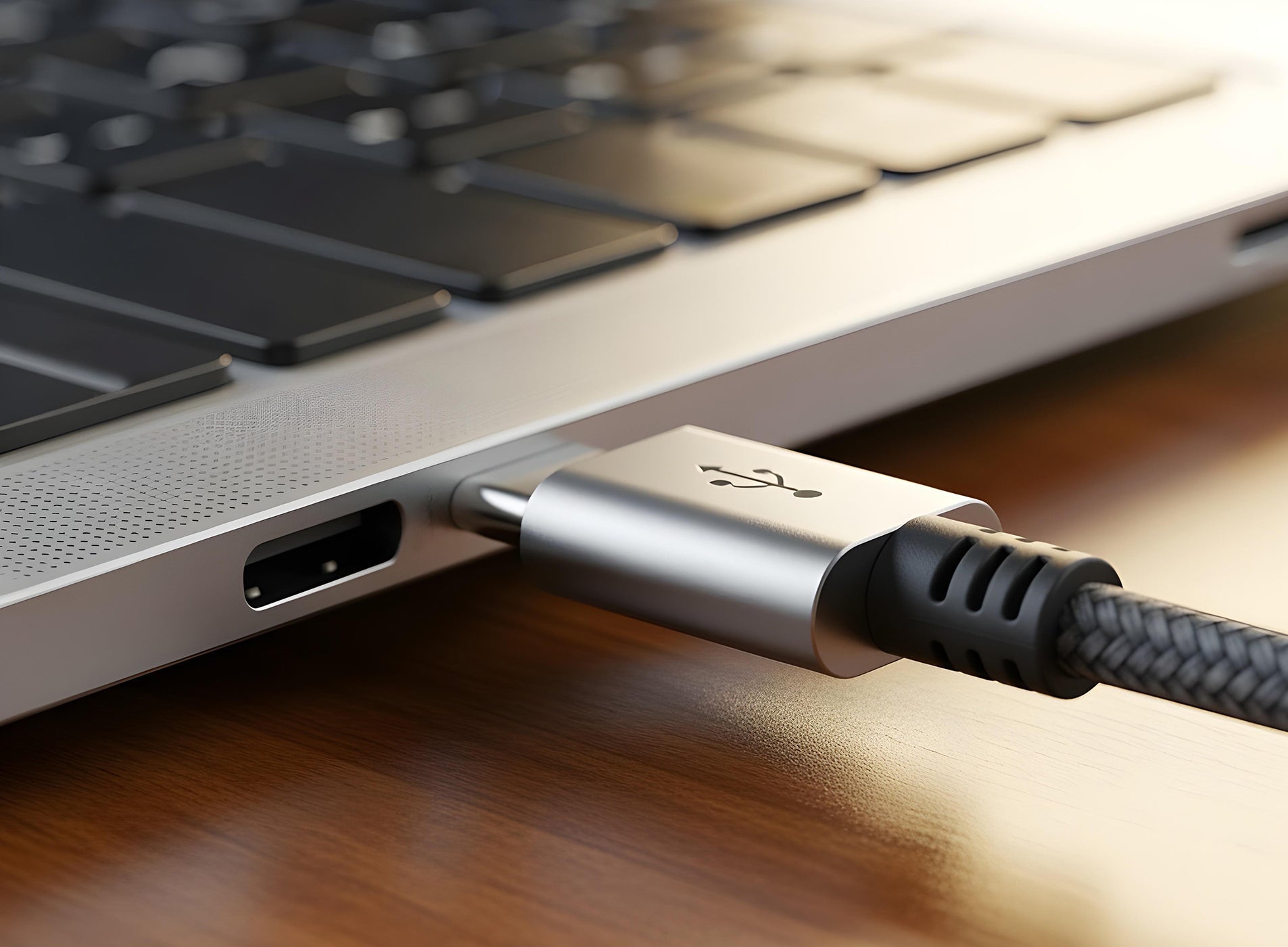
You’ve got your amomii board, you’ve opened amomii Link, and you’ve hit "Upload"—but the tool keeps saying "Device Not Found." You’ve tried restarting, you’ve tried a different port, but nothing works.
The culprit is likely sitting right in front of you: the USB cable.
In this guide, we’re going to reveal the "secret" difference between the cables in your drawer and why picking the right one is the key to a successful project.
Not All USB Cables are Created Equal
To the naked eye, almost all USB-C or Micro-USB cables look identical. However, inside that plastic casing, there is a big difference in how they are wired:
-
Charging Cables (The "Power-Only" Cable): These cables are designed only to provide electricity. They contain two wires inside (Positive and Negative). They are great for charging your headphones or a desk lamp, but they are "deaf and dumb" when it comes to data. They cannot send code to your board.
-
Data Sync Cables (The "Smart" Cable): These cables contain four wires inside—two for power and two for data transfer. amomii Link requires these extra data wires to "talk" to your board and flash your code.
The 3-Second Test: How to Spot the Difference
Since you can't see the wires inside, how do you know which one you have?
-
The Phone Test: Plug your smartphone into your computer using the cable. If your computer pops up with a message asking to "Browse Files" or "Trust this Device," you have a Data Sync cable. If the phone just starts charging and the computer says nothing, it’s likely a Charging Only cable.
-
The "Feel" Test: Generally (though not always), Data Sync cables are slightly thicker because they have more wires inside. If a cable feels extremely thin or flimsy, it is usually a charge-only cable.
-
The Source: Cables that come with rechargeable devices like fans, vape pens, or cheap flashlights are almost always Charging Only.
Good News! If you are using the cable included in your Testudo kit, you are all set. We include a high-quality Data Sync cable in every kit to ensure you can start hacking immediately without any connection headaches.
What to do if you're stuck?
If amomii Link keeps giving you an ERR-202 (Device Not Found) message:
-
Swap the Cable: Try every cable in your house. Statistically, one of them will be a data cable!
-
Use the "Heartbeat" Test: Head over to our [Heartbeat Test] post. If you can get that simple light to pulse, your cable is perfect.
The Golden Rule
If you want to save yourself a headache, label your data cables with a small piece of tape or a permanent marker. That way, when it’s time to hack, you’ll always grab the right tool for the job.
Still having trouble connecting? Check out our [Troubleshooting Guide] for more tips!

