

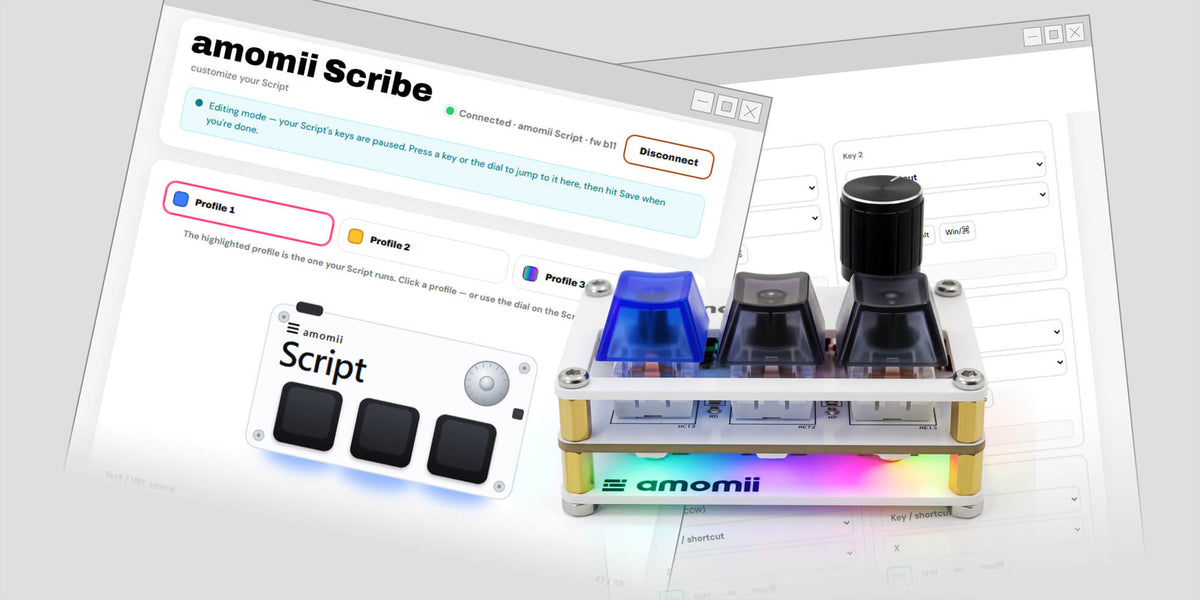
Your Script works the moment you plug it in, but it's at its best when it does exactly what you need. That's what Scribe is for.
Scribe is our free setup tool for Script, and it runs right in your browser. Choose what every key and the dial does, set the underglow color, and save it all to Script in a few clicks. No coding and nothing to install.
What you'll need
- Your assembled Script
- The USB-C cable from your kit
- A desktop or laptop computer running Google Chrome or Microsoft Edge
Scribe talks to Script using a browser feature called WebHID, which Safari and Firefox don't support yet. It also needs a computer: it won't run on phones or tablets.
Step 1: Open Scribe and connect
- Plug Script into your computer.
- Go to amomii.com/scribe in Chrome or Edge.
- Click Connect. Your browser shows a list of devices.
- Choose amomii Script and click Connect again.
Scribe reads the current setup straight from your Script and shows it on screen.
Step 2: Meet editing mode
While Scribe is connected, Script goes into editing mode. Its keys pause so you don't trigger shortcuts by accident, and a banner in Scribe lets you know.
Here's the best part: press any key or the dial on your Script and Scribe jumps straight to its setting. Turn the dial left or right to jump to that direction, or press it to jump to the dial press. It's the fastest way to find what you want to change.
When you close Scribe, your keys come back to life on their own.
Step 3: Choose a profile
Script holds three profiles, so you can have a different setup for different jobs: one for work, one for music, one for your favorite game or app.
Click a profile at the top of Scribe to edit it. The highlighted profile is the one your Script is running.
Step 4: Set each key and the dial
Every profile has six settings: the three keys, turning the dial right, turning the dial left, and pressing the dial. For each one, choose what it should do:
| Type | What it does | Great for |
|---|---|---|
| Key / shortcut | Presses a key, with or without Ctrl, Shift, Alt or Win/⌘ | Copy, paste, undo, app shortcuts |
| Media key | Controls your music and volume | Play/pause, next track, volume |
| Mouse | Clicks or scrolls | Scrolling long pages or documents |
| Type text | Types a phrase for you | Your email address, a sign-off |
| Open URL | Opens a website in a new browser tab | Sites you visit every day |
| None | Does nothing | Keeping a key free |
Keep an eye on the text space. Script has room for 58 characters of text and web addresses, shared across all three profiles. The green Text / URL space bar shows how much you have left, so keep phrases and addresses short.
Add a note. Each setting has an optional note, handy for reminding yourself why you set a key up the way you did. Notes stay in Scribe and aren't saved to Script.
Step 5: Pick your underglow
Each profile has its own underglow color, so you can tell at a glance which profile you're in. Pick a color, or choose Rainbow-chase for a rainbow that moves as you turn the dial.
Click Apply to Script to preview a color live on your Script before you commit.
Step 6: Save to Script
When you're happy, click Save to Script. Nothing is permanent until you do.
Your settings are stored on Script itself, not in your browser or computer. That means Script works exactly the same on any computer you plug it into, with no app running.
Switching profiles without Scribe
You don't need Scribe to change profiles. On Script itself:
- Hold the dial down for about half a second. All three key backlights light up, and the underglow previews each profile's color.
- Press key 1, 2 or 3 to choose that profile. The backlights blink to confirm, and you're done.
Script remembers your choice, even after you unplug it.
The factory profiles
Script comes with three profiles ready to go. Use them as they are, or treat them as a starting point.
| Profile 1: Editing (blue) | Profile 2: Music (amber) | Profile 3: amomii (rainbow) | |
|---|---|---|---|
| Key 1 | Select all | Play / pause | Opens Scribe |
| Key 2 | Copy | Previous track | Opens the Quill Hub |
| Key 3 | Paste | Next track | Opens amomii.com |
| Dial turn | Undo / redo | Volume | Scroll |
| Dial press | Cut | Mute | Close tab |
Want them back after experimenting? Click Reset all in Scribe to restore all three.
Unlock the members library
Anyone can use Scribe, no account needed. Sign in to your amomii account as well and you unlock the members library: ready-made profiles for music, coding, design, browsing, Fusion 360 and more. We add new ones regularly.
- Connect your Script in Scribe.
- In the Members area, click Sign in. Sign-in opens in a new tab so you don't lose your place.
- Sign in to your amomii account, then come back to Scribe and reload the page.
- Click Open members library, find a profile you like, and click Use this. It drops into the profile you're editing.
- Click Save to Script.
Don't have an account yet? You can create one for free at amomii.com.
Back up and share your profiles
- Export profile saves your setup as a small file on your computer. Keep it as a backup, or share it with a friend.
- Import profile loads a saved file. A single profile only replaces the profile you're editing. A full backup of all three profiles asks you before replacing anything.
Good to know
- Using a Mac? Use the Win/⌘ modifier for your shortcuts. The factory profiles use Ctrl, which suits Windows, Linux and ChromeOS. Open URL currently works on Windows, Linux and ChromeOS only.
- Open URL works best with your browser open. It opens a new tab in whichever browser window is active.
- Keyboard layout. Script types as if your computer uses a US keyboard layout. On other layouts, some symbols may come out differently.
Troubleshooting Scribe
- "This browser can't talk to USB devices." You're using a browser Scribe doesn't support. Switch to Chrome or Edge.
- Script isn't in the device list. Check the cable is fully plugged in and carries data (the kit cable does). Close any other tab that has Scribe open, since only one tab can talk to Script at a time.
- "Lost connection to the Script." Unplug Script, plug it back in, and click Connect again.
- My changes disappeared. Changes only stick once you click Save to Script.
- Scribe says it needs a bigger screen. Make your browser window wider, or open Scribe on a computer.
If Script itself isn't behaving, see Script Troubleshooting. Still stuck? Email support@amomii.com and we'll help you sort it out.
Ready to make it yours? Open Scribe.

