

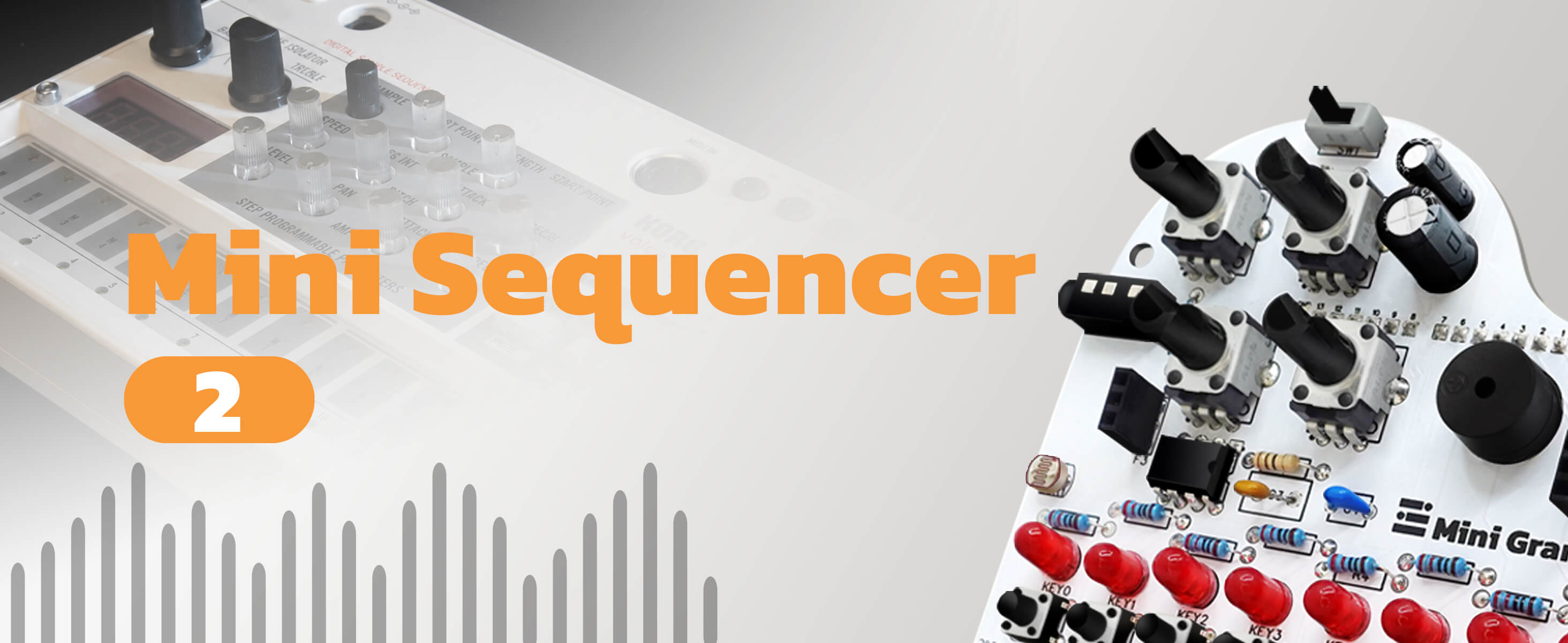
Uploading the Project
If you haven't already uploaded the Mini Sequencer 2 code to your device, there are two ways to do it:
1.Use amomii Link. amomii Link is our proprietary tool for uploading code directly from our website.
- Go to Mini Grand Link and choose your project. Today we’re picking Mini Sequencer 2.
- Read about the amomii Link tool.
2.Manual Installation: Go to the Toolbox, download the code and upload it to your device using the Arduino IDE (if you don't know what that means, use option one!)
- Go to Toolbox.
What it Does
This project is an evolution of the Mini Sequencer. While Mini Sequencer played pre-set patterns, Mini Sequencer 2 gives you full control, allowing you to build your own loops from scratch. It turns your Mini Grand into a more flexible tool for musical experimentation.
Starting the Sequence
When you power up the piano, you’ll hear the startup sound and see the rainbow lights on the Glow strip. To begin, press KEY 0 (the red one). You might notice that the lights start moving, but the piano is silent. This is normal—it means the sequence is running, but you haven't assigned any notes to the beats yet.
Setting Up Your Loop
You can customize the structure of your sequence using the control knobs:
-
Adjusting Sequence Length (POT_A0): This knob controls how many beats are in your loop, from zero up to eight. If you turn it all the way down, the sequence stops. If you turn it all the way up, you’ll have an 8-beat loop.
-
Changing the Speed (POT_A2): Just like the previous version, turning this clockwise slows the loop down, while counter-clockwise makes it faster.
Creating and Editing Sounds
The key to this project is the Active Beat. This is the specific step in the sequence that you are currently editing. Here is how to create your melody:
-
Select a Beat: To choose which beat you want to edit, press and hold that piano key. The key will glow red to show it is the "Active Beat."
-
Adjust the Note (POT_A3): While holding the key (or while the sequence is running), turn this knob to change the frequency of that note. You can set it anywhere from a low rumble to a high chirp.
-
Previewing: When you hold a key down, that specific sound will loop repeatedly. This lets you dial in the exact pitch you want without waiting for the whole sequence to cycle through. Once you let go, the full sequence starts over from the beginning.
-
Deleting a Note: If you want to make a beat silent, select it as the Active Beat and turn the frequency knob (POT_A3) all the way counter-clockwise.
Reading the Glow Strip
The lights on the strip provide two types of information at once:
-
Position: One light moves down the strip to show you exactly which beat is currently playing.
-
Content: The LEDs will cycle through rainbow colors by default. However, if a beat has a note assigned to it, that LED will glow red when the sequence hits it. This makes it easy to see your rhythmic pattern at a glance.


